Controls
Every Ragdoll Football input across PC, mobile and console: movement, jumping, tackling, diving, kicking and the hold-to-aim throw system.
Introduction
The Controls hub is the complete input reference for Ragdoll Football across PC, mobile and console. Every action in the game is mapped to a simple set of buttons, but the exact key or tap changes depending on your platform. This page explains how to move, jump, dive, tackle, kick, hand off, take a knee and use the hold-to-aim throw system, with separate maps for keyboard and mouse, touch controls and gamepad inputs. Understanding the controls is the first step to playing well, because Ragdoll Football runs on live physics and rewards quick, correct reactions rather than memorized combos. We keep this reference updated whenever the developers change button layouts, and we mark control details that are still community-confirmed with clear notes so players always know which inputs are verified.
Ragdoll Football Input Quick Reference
| Action | PC | Mobile | Console |
|---|---|---|---|
| Move | WASD | Left joystick | Left stick |
| Jump | Space | JUMP button | A / Cross |
| Tackle / Hike / Kick | Left Click | Tap | RT / R2 |
| Dive / Hand off / Cancel | X | DIVE button | X / Square |
| Take a Knee / Touchback | V | Dedicated button | Dedicated button |
Control Schemes by Platform
PC Control Scheme
The PC control scheme is built around mouse and keyboard efficiency. Movement lives on WASD with Space to jump, the left mouse button handles tackles, hikes and kicks, and holding that same button charges an aimed pass before you release to throw.
Mobile Control Scheme
Mobile controls are streamlined for touch play with the left joystick for movement and dedicated jump and dive buttons placed where your thumbs naturally rest. Tapping the screen triggers tackles and hikes, while pressing and holding lets you aim a pass before releasing to throw.
Console Control Scheme
Console players get a familiar gamepad layout with the left stick for movement, A or Cross to jump, X or Square to dive and the RT or R2 trigger for tackles, hikes and kicks. Holding the trigger charges passes so you can aim downfield before releasing.
Camera And Zoom
Camera and zoom controls let you scan the field before every snap. PC players use right click and the scroll wheel, while mobile and console rely on the standard camera view with easy read on receivers. Good camera habits reduce missed throws and surprise tackles.
Keyboard And Mouse Tips
Keyboard and mouse efficiency tips help desktop players stay sharp through long matches. Keeping one hand relaxed on WASD, using the mouse for fast camera reads and practicing smooth hold-and-release throw timing all reduce fatigue and improve accuracy in chaotic plays.
Core Mechanics
Ragdoll Football uses one unified action model across all platforms. Movement is the foundation: WASD on PC, the left joystick on mobile, and the left stick on console. The attack button is the heart of the system — on PC it is Left Click, on mobile a tap, and on console the RT or R2 trigger. This same button tackles, hikes the ball as quarterback, and kicks. Holding the attack button charges a throw and releasing it launches the pass, which is the core of the hold-to-aim throw system. A dive button handles dives, hand-offs and cancelling a throw on every platform, while a separate button or command lets you take a knee for a touchback. Jumping, camera control and zooming round out the layout so players can read the field and react instantly to the physics engine.
Advantages
The Controls hub gives players a single, reliable place to look up any input for their platform. Because the same action maps to different buttons on PC, mobile and console, having one verified table removes the guesswork and prevents the most common beginner errors, like pressing the wrong button during a tackle. The hold-to-aim throw system is explained in detail, which helps quarterbacks land passes more consistently. Another strength is the example-oriented layout: instead of a wall of abstract key names, each action is paired with its platform-specific pressing pattern. This makes the page useful both as a first-time reference and as a quick lookup during a match, and it is kept in sync with the latest developer changes and community input reports.
Challenges
The main challenge for the Controls hub is platform differences and player habits. Console players may have their own muscle memory from other football games, and remapping is not always officially supported, so the recommended layout may differ from what an individual player prefers. Mobile players also face the limitation of touch controls, where buttons are placed on screen and can be harder to reach quickly during chaotic plays. Finally, the game is still new, so some advanced actions are confirmed by the community rather than official patch notes. We update the page whenever new input details are verified, and we clearly separate official inputs from community-reported ones.
Frequently Asked Questions
How do I aim a throw in Ragdoll Football?+
Can I play with a controller on PC?+
Why can I not remap my buttons?+
Quick Tips
Memorize the attack button first because it does three jobs: it tackles defenders, it hikes the ball when you are the quarterback, and it kicks when the ball is at your feet. Learning this one button unlocks most of the action in Ragdoll Football, and it is the same on every platform with a different physical key or tap.
Use the hold-to-aim throw system for long passes. Instead of tapping the attack button quickly, hold it, look for your receiver, and release when the pass lane is clear. Because the physics engine lets you aim in real time, a well-timed release produces cleaner throws than random taps, especially on mobile where the joystick controls your movement.
Practice the dive and take-a-knee commands in a quiet match before using them under pressure. Diving is your tool for catches, saves and highlight stops, while taking a knee is the safe play for a touchback when you do not want to risk a turnover. Knowing where these inputs are keeps you ready in both situations.
Featured
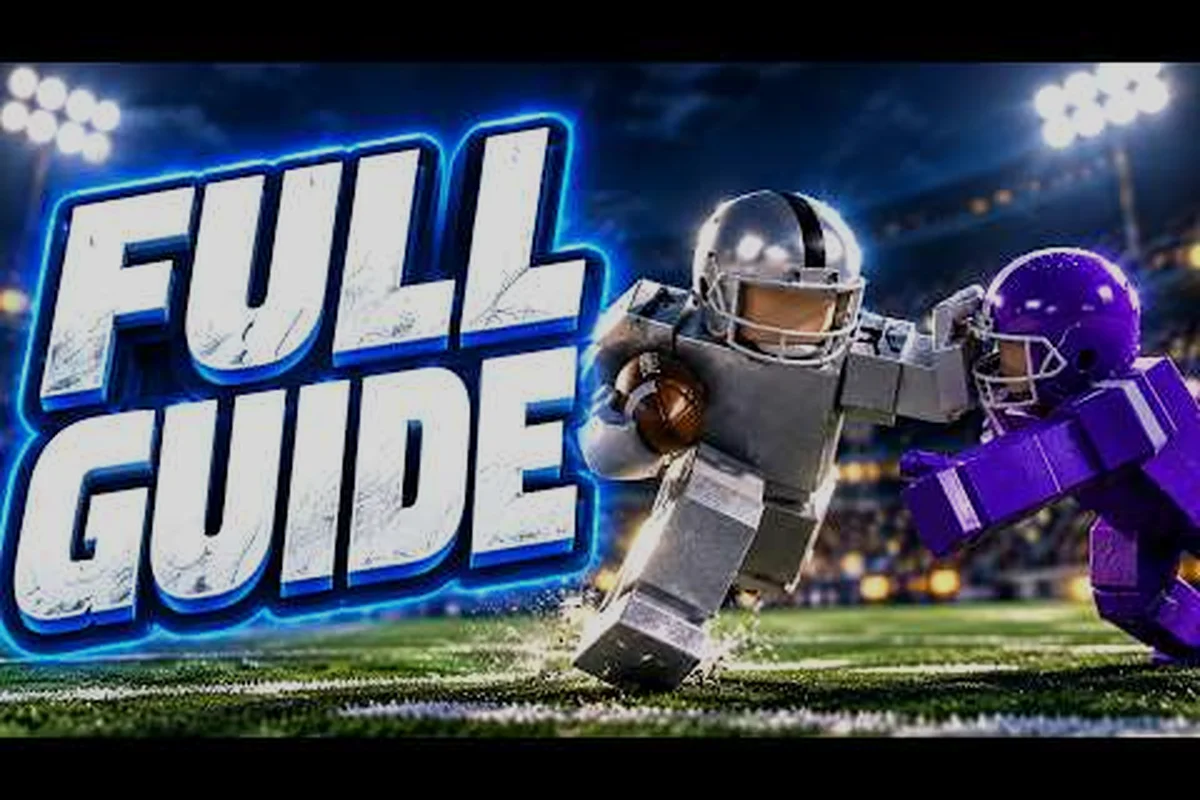
Ragdoll Football Controls: PC Keybinds, WASD & Gamepad Setup
Lock down Ragdoll Football controls with the full WASD movement, keybinds, and gamepad setup every player needs on PC.
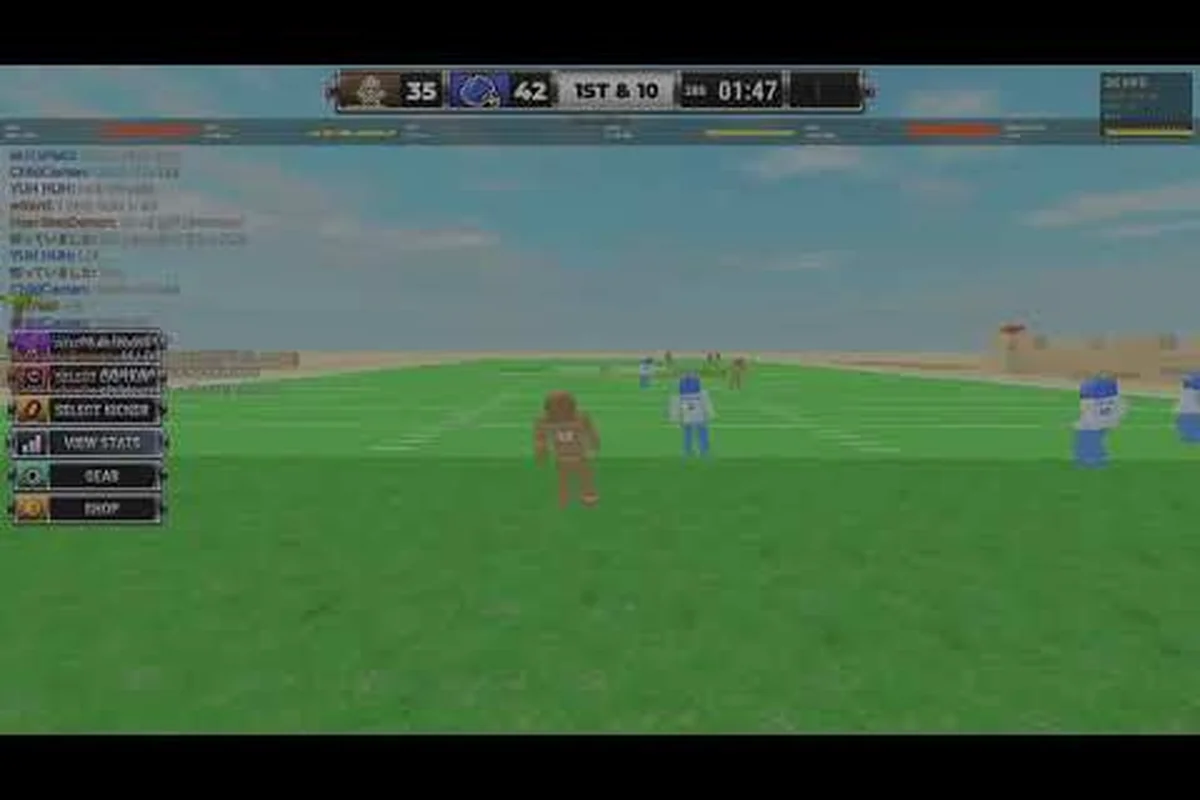
Ragdoll Football Mobile Controls: Touch Buttons & Joystick Layout
Master Ragdoll Football mobile controls with the on-screen joystick, jump and dive buttons, and touch-friendly menus built for phone play.
Ragdoll Football PS5 Controls: Full Button Map for Every Play
Grab the Ragdoll Football PS5 controls with the full button map for throwing, tackling, diving, and switching schemes mid-game.
All Articles
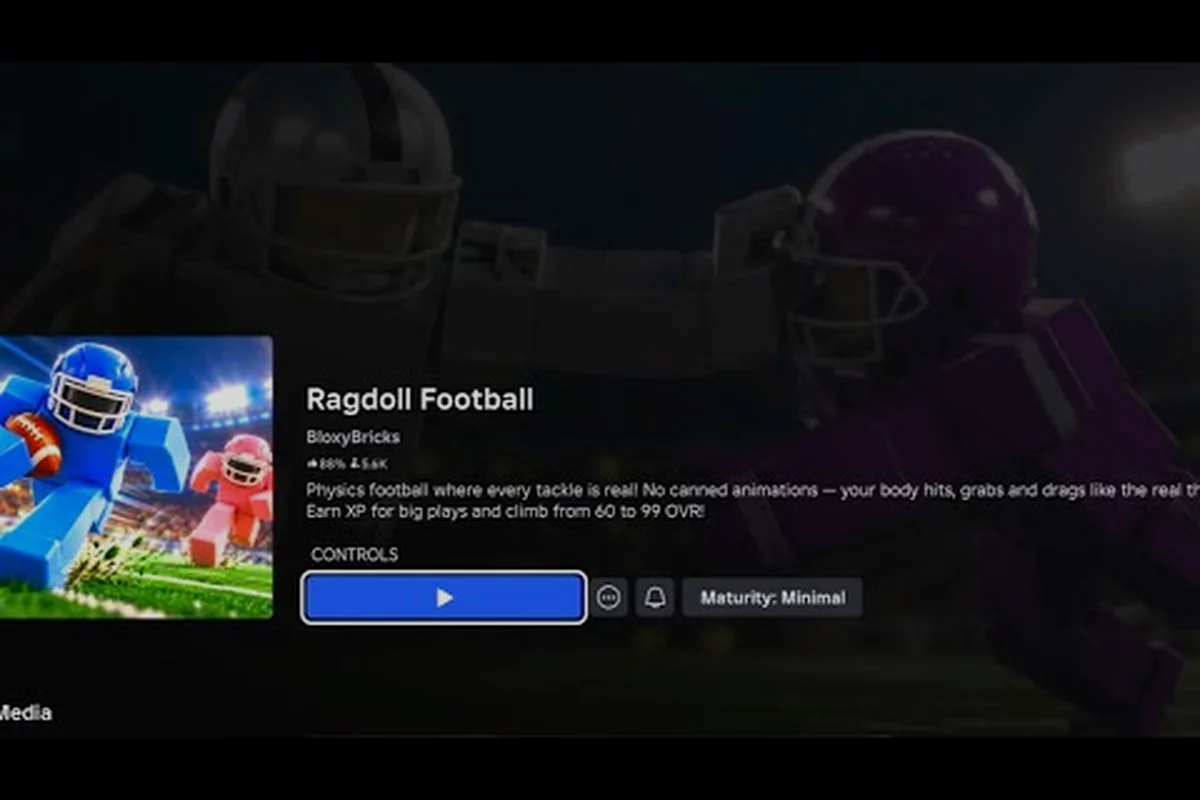
Ragdoll Football Tackle Button: Hit, Aim Throw & Cancel Guide
Find the Ragdoll Football tackle button, aiming throw, and cancel throw inputs so every hit, pass, and kick lands on target.
Ragdoll Football Button Layout: Remap Keys & Sensitivity
Rebuild your Ragdoll Football button layout by remapping keys, tuning sensitivity, and locking in the best settings for your playstyle.
Ragdoll Football Controller Support: Map, Dive & Hand Off Inputs
Set up Ragdoll Football controller support with mapped buttons for diving, handing off, and taking a knee on every gamepad.

Ragdoll Football Touchback Controls: Space, Click & Console Map
Master Ragdoll Football touchback controls with the space bar jump, left click tackle, right click camera, and scroll zoom on every platform.